
How to Check Your Voiply Internet Balance
You can quickly check your internet plan details, usage, and remaining balance using your router’s Serial Number (SN).
On this page
Step 1: Find Your Router’s Serial Number (SN)
- Look at the back or bottom of your Voiply router.
- Find the label that says “Serial Number” or “S/N” — this is a mix of letters and numbers.
- You’ll use this Serial Number to access your balance page. The SN is located on the back sticker.
Step 2: Open the Balance Page
Go to this link in your browser:
👉 https://mywifistatus.com/?device_sn= (opens in a new tab)
Step 3: Add Your Serial Number
After the equals sign (=) in the link, type your Serial Number.
Example:
https://mywifistatus.com/?device\_sn=VPL123456789 (opens in a new tab)
Then press Enter to open your device’s balance page.
Step 4: Review Your Balance and Details
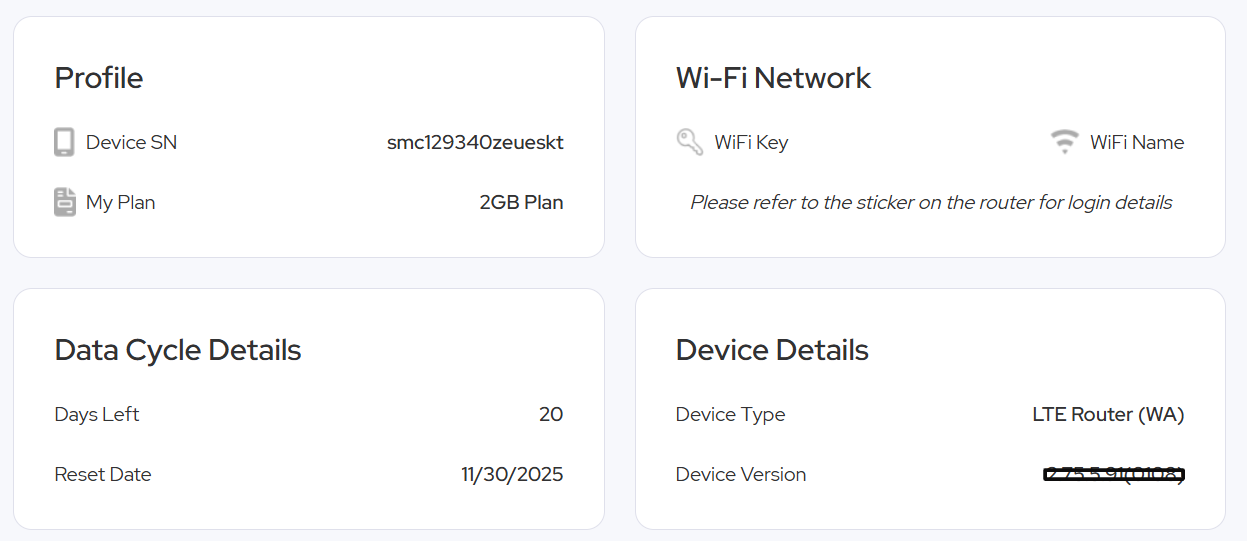
Once the page loads, you’ll see your device dashboard showing:
- Usage – data used and remaining balance
- Connection Status – online or offline
- Data Cycle Details – days left in your current cycle and reset date
- Wi-Fi Network Info – your Wi-Fi name and key (printed on your router’s sticker)
Below are examples of what you’ll see:
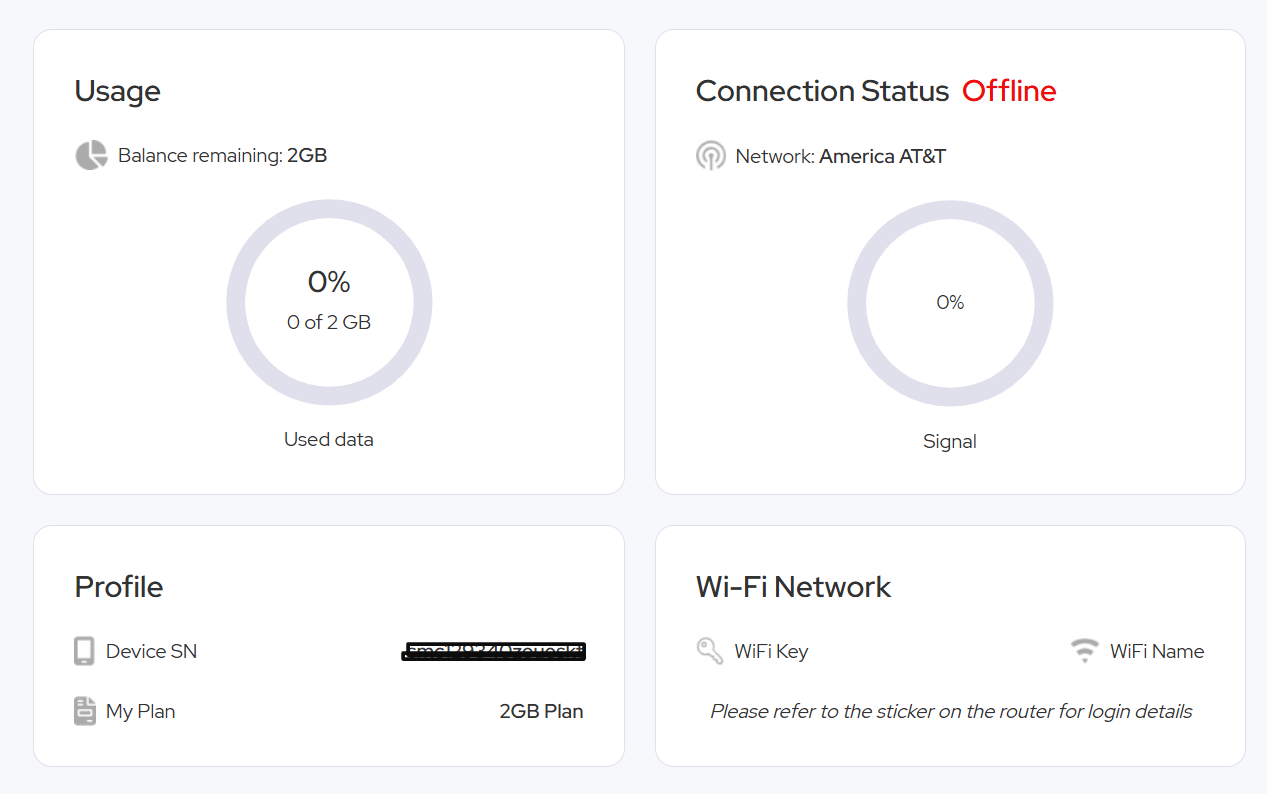
Tip: If the page shows Offline under “Connection Status,” it simply means your router isn’t currently connected to the network.
Did this answer your question?
Glad it helped.