
Starter Plan - Managing your Phone Number
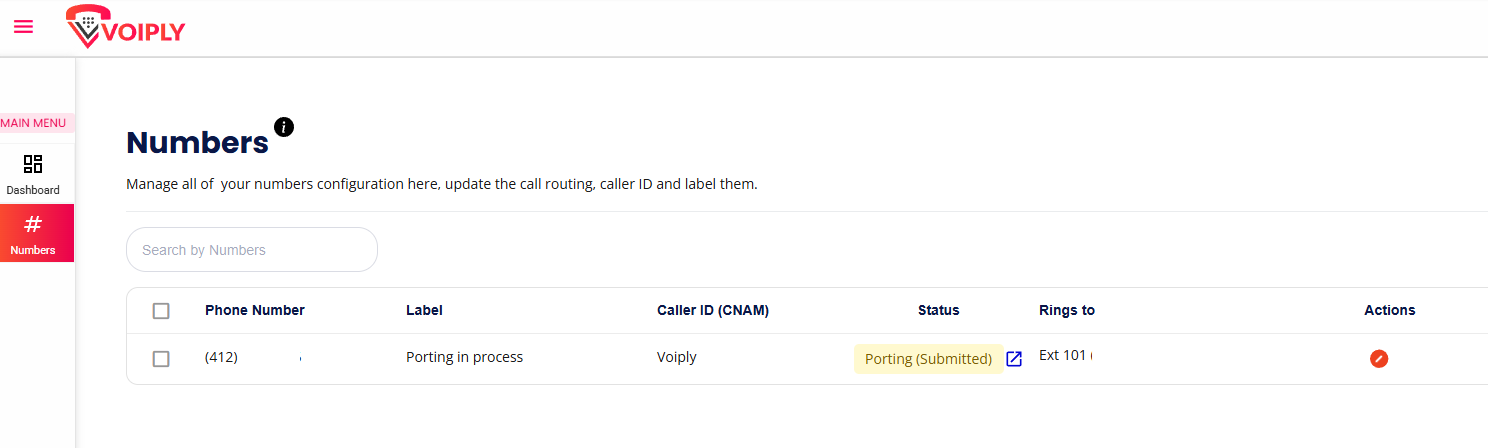
The Numbers tab lets you view and manage your phone number with ease. Whether you're porting a number, assigning extensions, or updating caller ID, everything is conveniently accessible from one screen.
🔍 Navigating the Numbers Tab
To access the Numbers tab:
- Log in to your Voiply Business Portal.
- From the left-hand menu, click on Numbers.
You’ll see a table listing all of your numbers with the following columns:
| Column | Description |
|---|---|
| Phone Number | The number currently associated with your account. |
| Label | An internal label you can assign (e.g., "Main Line", "Support", etc.). |
| Caller ID (CNAM) | The name that displays when you make outbound calls. |
| Status | Indicates if the number is active, porting, or in another state. |
| Rings to | The extension or user the number is currently routing to. |
| Actions | Options to edit number settings. |
🔁 Porting a Number
If you're transferring an existing number to Voiply, its status will show as Porting (Submitted) until the process completes. During this time:
- The number can still be configured and routed to a specific extension.
- You’ll see the “Porting in process” label in both the table and number details view.
- Caller ID (CNAM) can still be updated.
⚠️ Note: You’ll receive a notification once porting is complete and the number becomes fully active.
✏️ Editing Number Details
Click the red pencil icon under the Actions column to open number settings. You can:
- Edit the label to easily identify the number.
- Set Caller ID (CNAM) for outbound calls.
- Mark the number as Primary if it’s your main line.
Don't forget to click Save Number to apply any changes! 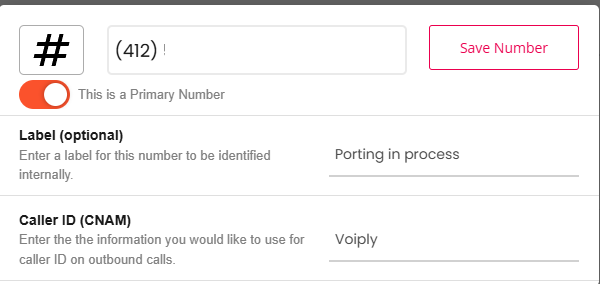
📌 Tips for Best Use
- Use labels to distinguish between marketing, support, or sales lines.
- Make sure your CNAM is set to a business-friendly name that customers will recognize.
Did this answer your question?
Glad it helped.