
Voiply Desktop App - How to Make and Receive Calls
The Voiply Desktop App gives you the power to make and receive VoIP calls directly from your computer with an intuitive interface and essential calling features.
🔢 Making a Call
Open the Voiply Desktop App.
Launch the app and navigate to the Keypad section from the left menu.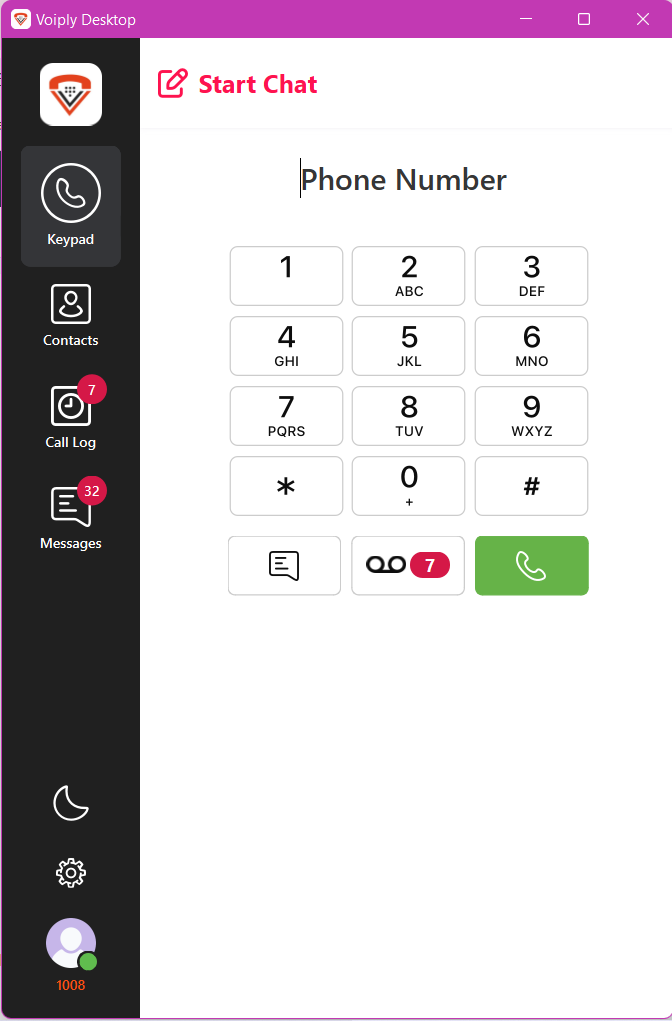
Enter the number.
Use the on-screen dial pad or type the number directly in the “Phone Number…” field. You can also choose a contact from the Contacts tab.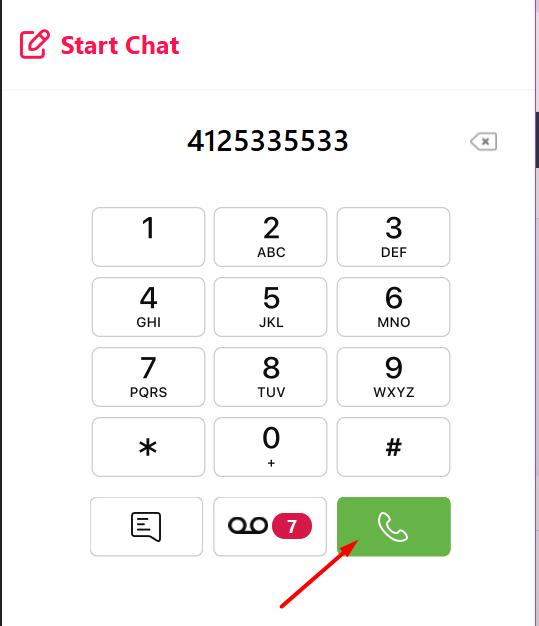
Click the green phone icon.
This will initiate the call.You're connected!
Once the call connects, a timer will begin to display call duration.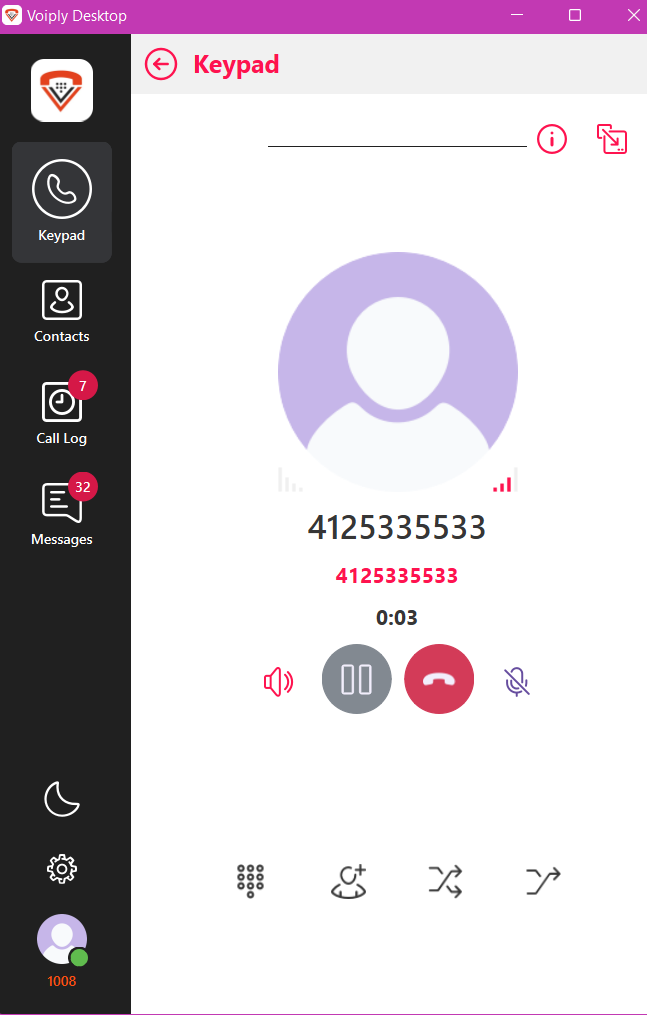
📥 Receiving a Call
When an incoming call is received, you’ll be notified with a pop-up on your screen and an alert within the app:
Desktop Notification:
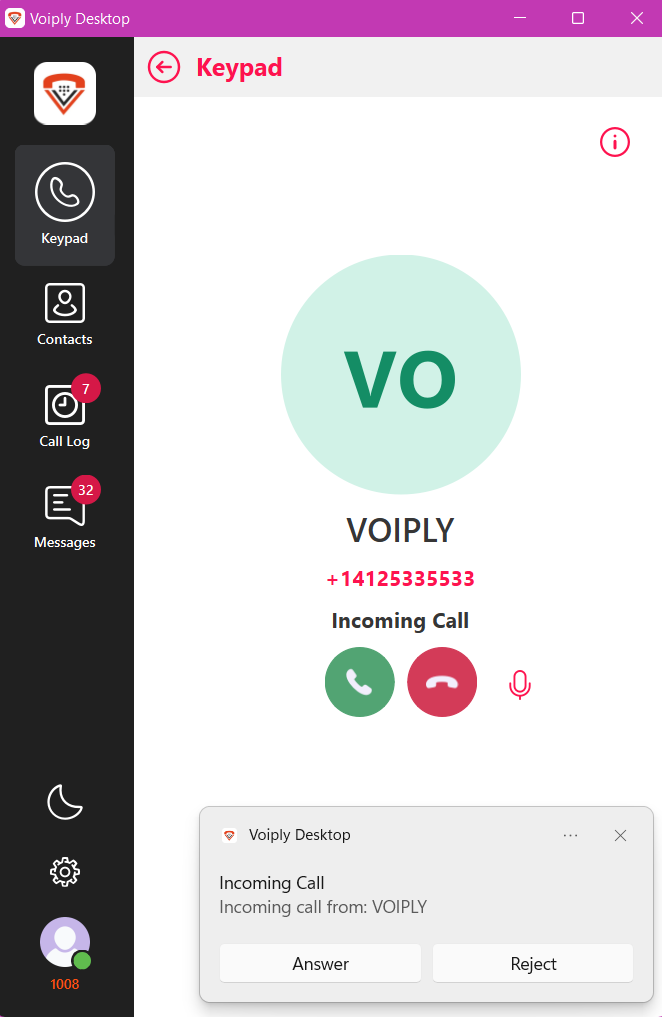
In-App Alert:
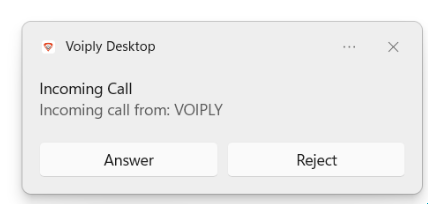
Answer or reject the call.
Click the green phone icon to answer or the red phone icon to decline.
🎛 Understanding In-Call Icons
During an active call, you’ll see several icons on the screen:
| Icon | Function | Description |
|---|---|---|
| Screenshot****Speaker | Audio Output | Adjust or toggle your speaker settings during a call. |
| Screenshot Pause / Hold | Place on Hold | Temporarily place the call on hold. |
| Screenshot End Call | Hang Up | Disconnect the call. |
| Screenshot Mute | Mute/Unmute Microphone | Mute your microphone so the other party can't hear you. |
| Screenshot Keypad | Dialpad | Open the dial pad to enter numbers (e.g., for extensions or IVR menus). |
| ScreenshotAttended Transfer | Warm Transfer | Speak with the person you're transferring to before completing the transfer. |
| Screenshot Blind Transfer | Immediate Call Transfer | Instantly transfer the call to another number without speaking to the recipient first. |
| Screenshot Add Call / Conference | Start 3-Way Call | Add another participant to the call for a conference. |
| Screenshot Info | Call Details | View metadata such as call ID, codec, call duration, or SIP status. |
| Screenshot Record | Start/Stop Recording | Begin or end a recording of the active call (if enabled in your account). |
| ScreenshotPop-Out Window | Open in New Window | Pops the call into a separate floating window for multitasking convenience. |
Need Help?
If you run into any issues or need help with setup, feel free to reach out to Voiply Support for assistance.
Did this answer your question?
Glad it helped.