
Voiply Mobile App (Android) - Make and Receive Calls
The Voiply Mobile App makes it simple to place and answer calls. Below you’ll find step-by-step instructions for Android devices.
On this page
Step-by-Step:
Open the App & Dial
Tap the dial pad icon and enter the number you wish to call.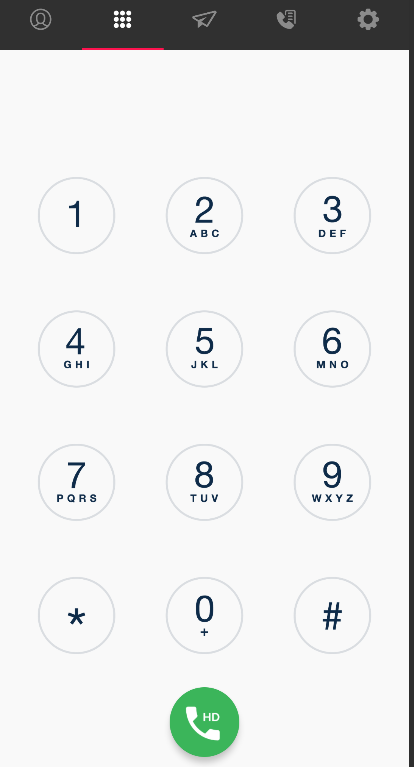
You can also select a contact from your phone’s address book.
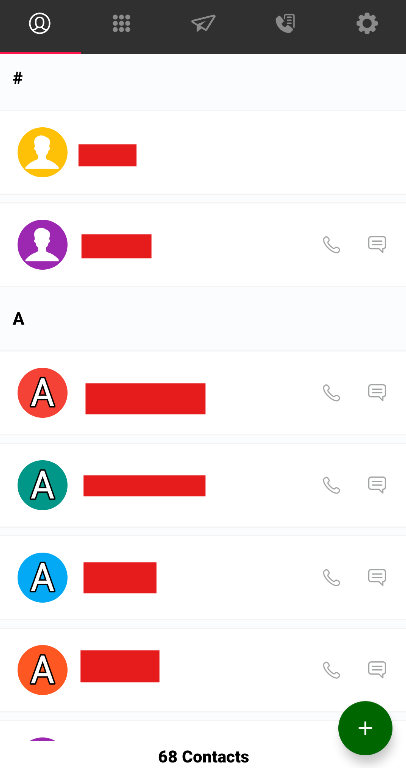
Tap the Phone Icon
This places your call. From the dial pad: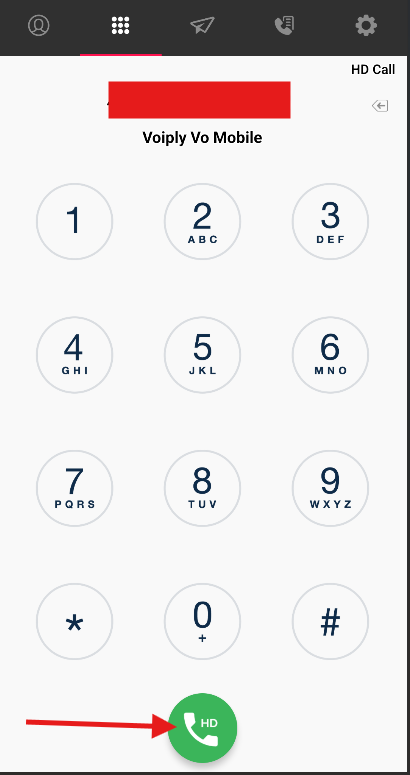
From the address book:
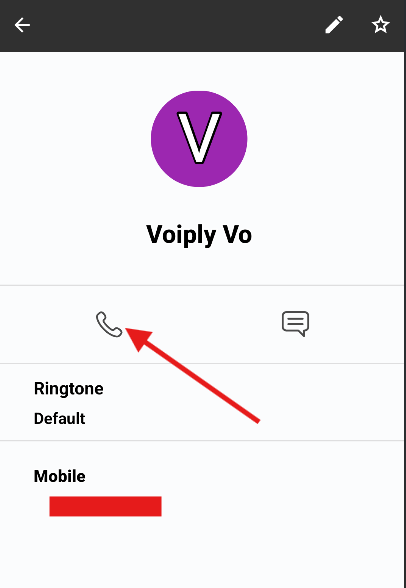
Watch for Call Status
Once the call is connected, the status will show “Established”, and a call timer will begin.
📲 Receiving Incoming Calls
When a call is coming in, you’ll see a screen like this: 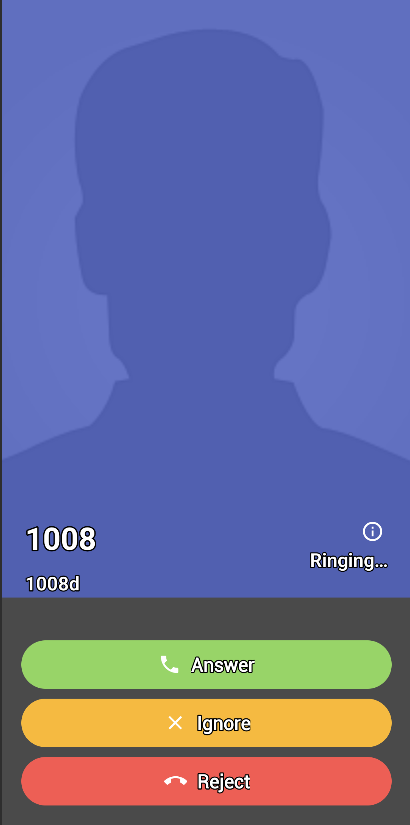
Here’s what each button does:
| Button | Description |
|---|---|
| Answer | Accept and connect the call. |
| Ignore | Silences the call. The caller still hears ringing, but your phone won't ring. |
| Reject | Declines the call immediately. The caller hears a busy tone or voicemail. |
🔍 In-Call Icons & Features
🔝 Top Bar
Screenshot
ℹ️ Info – View call details.
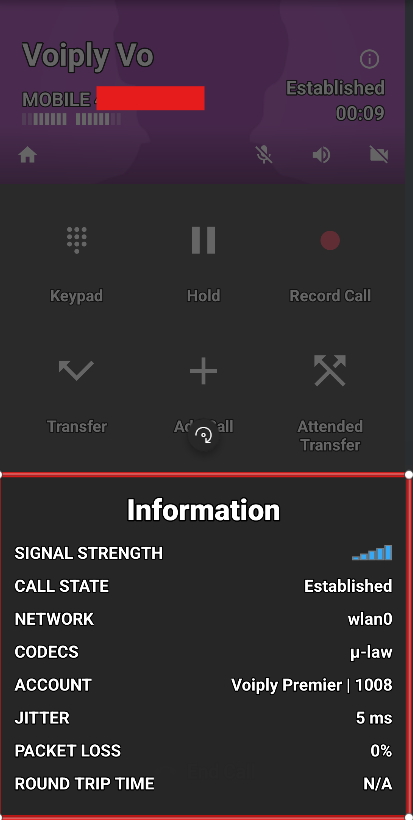
🏠 Home – Return to the app’s main screen.
🎤 Mute – Mute/unmute your microphone.
🔊 Speaker – Enable speakerphone.
📹 Video – Not available currently.
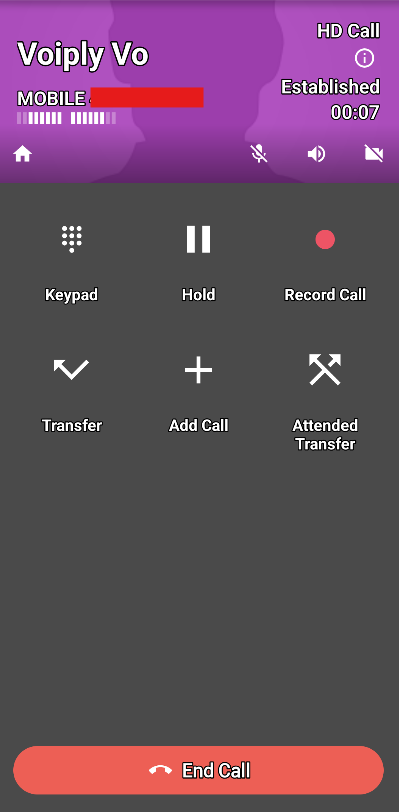
🎛️ Call Controls
| Icon | Label | Description |
|---|---|---|
| Screenshot | Keypad | Open the keypad to enter digits (e.g., menu options). |
| Screenshot | Hold | Put the call on hold. |
| 🔴 | Record Call | Record your call. Saved in Call Logs. |
| Screenshot | Transfer | Directly transfer the call to another number. |
| Screenshot | Add Call | Add another caller to the conversation. |
| Screenshot | Attended Transfer | Warm transfer: speak with the recipient before completing the transfer. |
🔴 Screenshot
- 📞 End Call – Tap the End Call button to hang up.
Did this answer your question?
Glad it helped.