
Voiply Mobile App (iOS) - Make and Receive Calls
Whether you're making an outbound call or answering one, the Voiply Mobile App for iOS makes it easy to stay connected. Here’s a full breakdown of how to use the app on your iPhone:
On this page
✅ Making a Call
Open the Voiply App and go to the dial pad.
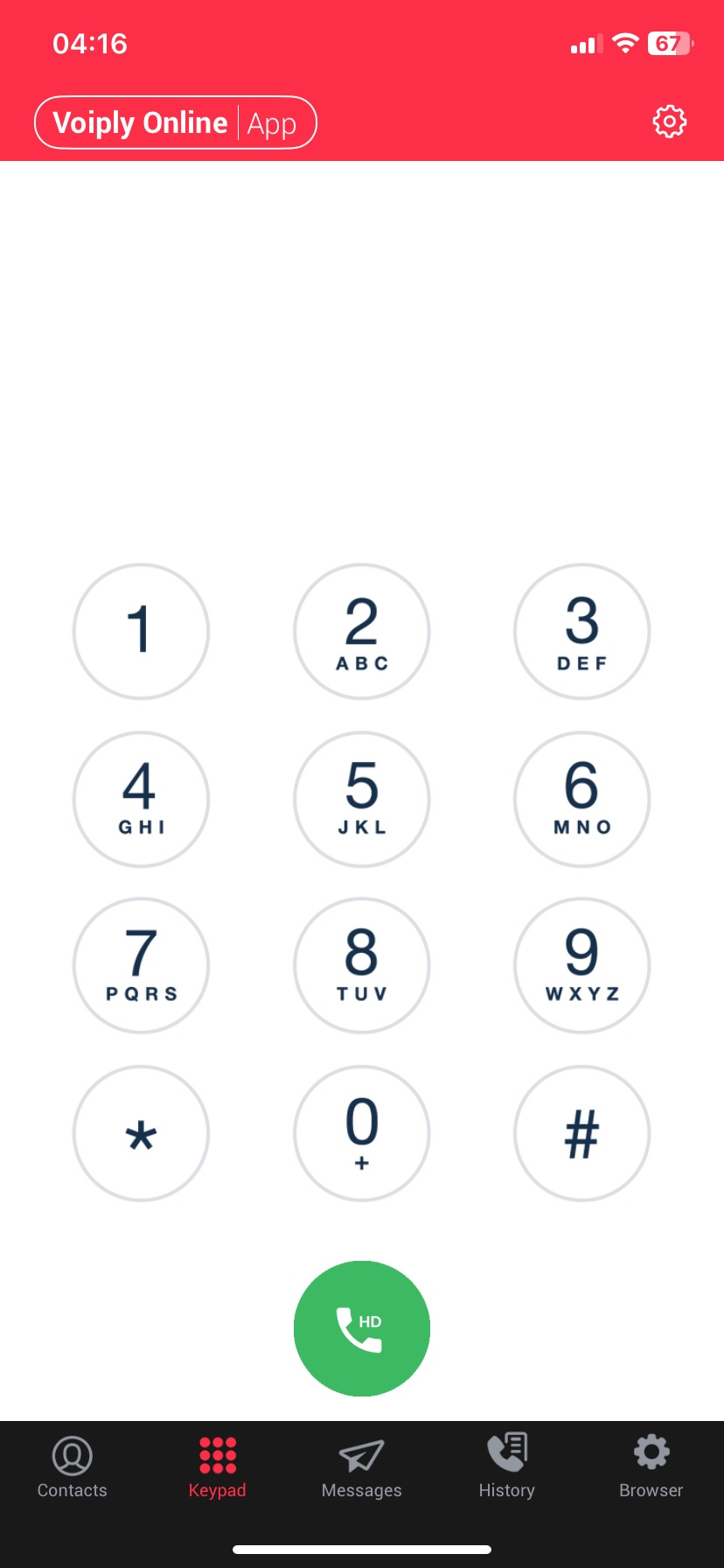
Enter the number you’d like to call, or select a contact from your iPhone’s address book.
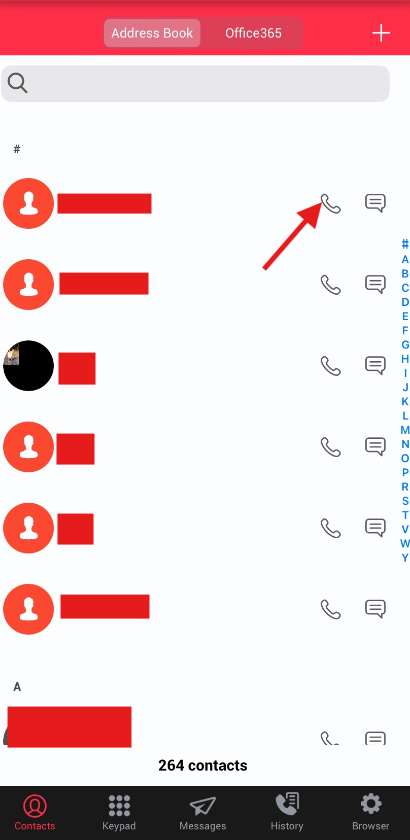
Tap the phone icon to start the call.
Once connected, the call status will show “Established”, and the call timer will begin.
📲 Receiving a Call
When a call comes in, you’ll see options like these: 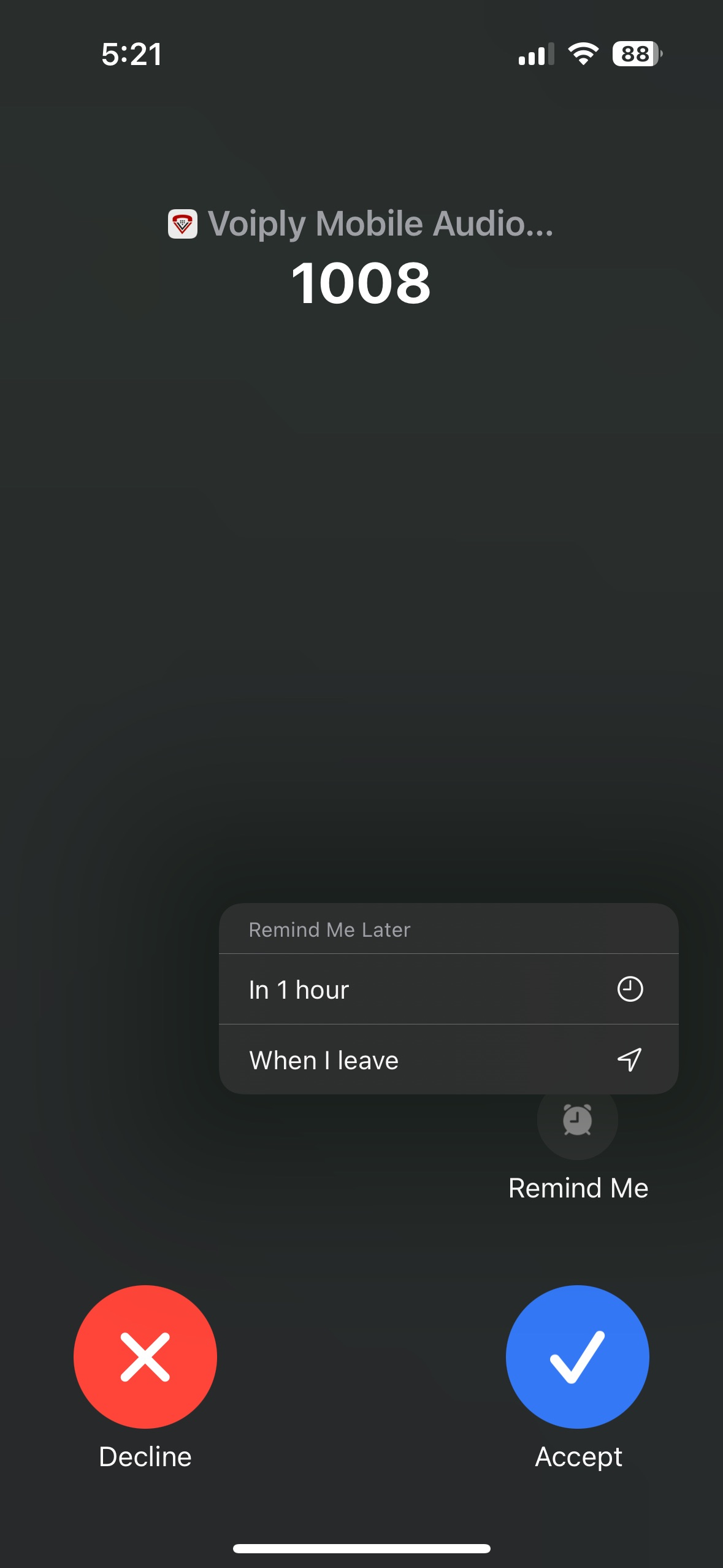
| Button | Action |
|---|---|
| Accept | Pick up the call. |
| Remind Me | This gives you the option to be reminded about the missed call later. You can choose: - In 1 hour – Get a reminder in 1 hour. - When I leave – Get a reminder when you leave your current location. |
| Decline | Decline the call. The caller will hear a busy tone or go to voicemail. |
🔍 Understanding In-Call Icons
When you’re on a call, you’ll see a set of icons with useful functions: 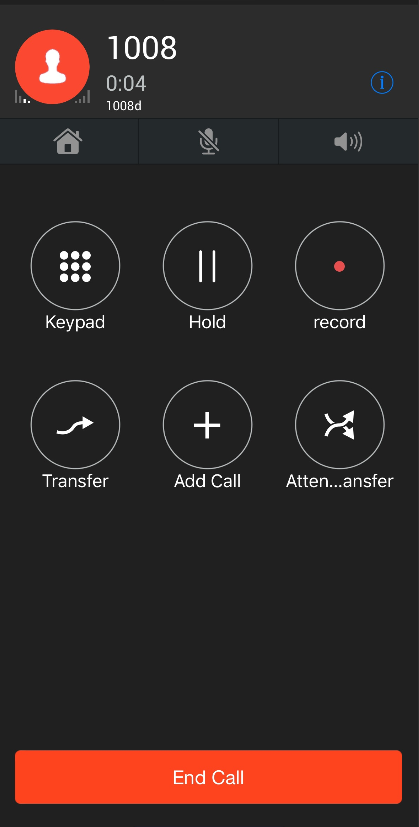
| Icon | Function | Description |
|---|---|---|
| Screenshot | Info | View call details. |
| Screenshot | Home | Return to the app’s home screen. |
| Screenshot | Mute | Mute/unmute your microphone. |
| Screenshot | Speaker | Toggle speakerphone on/off. |
| Screenshot | Keypad | Access the keypad (e.g., to press numbers during a call). |
| Screenshot | Hold | Place the call on hold. |
| Screenshot | Record Call | Record the conversation (recordings available in call logs). |
| Screenshot | Transfer | Transfer the call to another number instantly. |
| Screenshot | Add Call | Start a second call and create a 3-way conference. |
| Screenshot | Attended Transfer | Speak to the recipient first before transferring the call (warm transfer). |
| Screenshot | End Call | Hang up the call. |
💬 Need Help?
If you need assistance or have questions about using the app, our support team is happy to help anytime!
Did this answer your question?
Glad it helped.