
Residential - Portal Dashboard Overview
The Voiply Residential Portal Dashboard gives you a quick look at your account and easy access to key features like call history, voicemail, call blocking, and more. It’s built to help you manage your service without digging through menus. From here, you can view your plan details, download the mobile app, and use Quick Actions to set up common features.
On this page
Use the sections below to learn what each part of the dashboard does. You can click any linked article for step-by-step help.
Welcome & Account Summary
At the top of your dashboard, you’ll see a welcome message and key account details, including:
- Your main phone number
- Your current plan type (Residential)
- A link to manage your billing
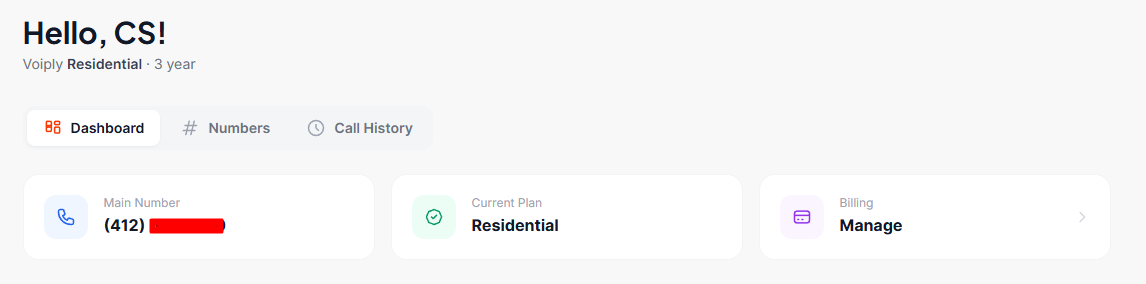
This section also has shortcuts to pages you use often.
Helpful shortcut: Click Manage under Billing to open your Billing tab. There you can view your invoices, payment details, and billing history.
Connected Devices
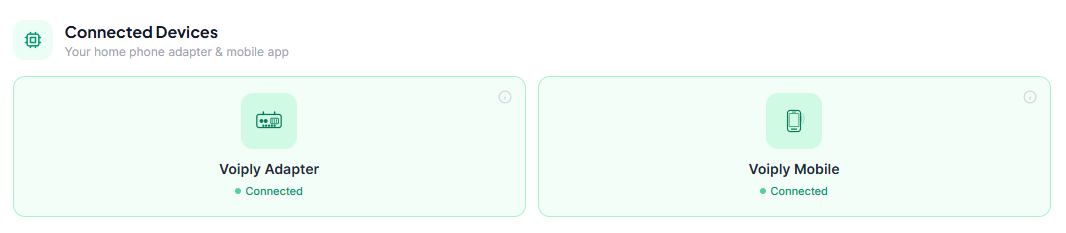
The Connected Devices section shows the devices linked to your account, such as your home phone adapter and the mobile app. You’ll see a status for each one:
- Voiply Adapter: your home phone hardware
- Voiply Mobile: the Voiply app on your smartphone
A green Connected status means the device is active and working. If a device shows as disconnected, this is a good first place to check.
Navigation Tabs
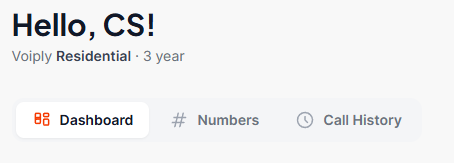
At the top of the dashboard, you’ll find three tabs:
- Dashboard: your main overview page (this is the default view)
- Numbers: manage settings for your phone numbers
- Call History: view your incoming and outgoing calls and your voicemail
Voiply Mobile App
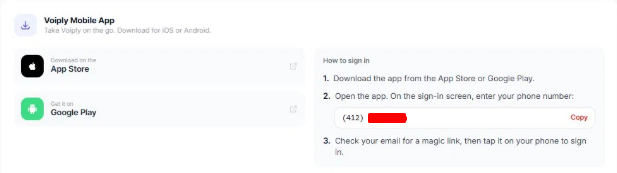
The Voiply Mobile App section lets you take your Voiply number with you. You can download it from:
- App Store, for iPhone
- Google Play, for Android
How to sign in:
- Download the app from the App Store or Google Play.
- Open the app.
- On the sign-in screen, enter your phone number.
- Check your email for a magic link, then tap it on your phone to sign in.
👉 Learn more: Using the Voiply Mobile App (iOS & Android)
Quick Actions
The Quick Actions section gives you one-click access to commonly used features. Each tile opens a dedicated configuration page. 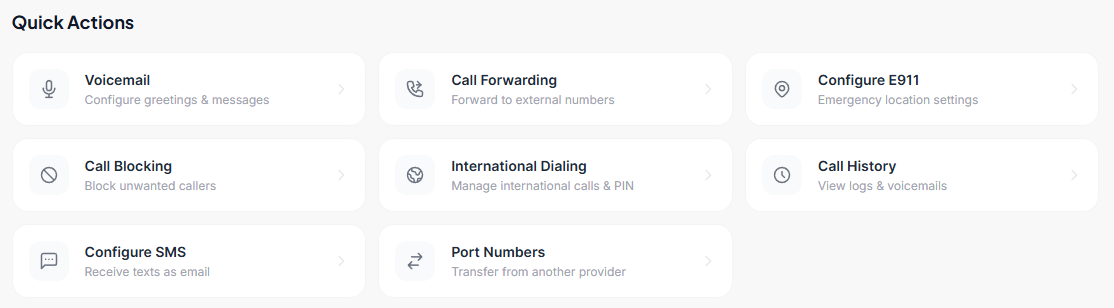
Voicemail
Set up voicemail greetings and configure voicemail-to-email options. 👉 Learn more: How to Configure Voicemail in the Voiply Portal
Call Forwarding
Forward incoming calls to another phone number when needed. 👉 Learn more: How to Set Up Call Forwarding
Configure E911
Manage your E911 address to ensure emergency services receive the correct location. 👉 Learn more: How to Configure E911 for Your Voiply Line
Call Blocking
Block unwanted callers by adding numbers to your block list. 👉 Learn more: How to Block Unwanted Calls from Your Voiply Portal
International Dialing
Enable or disable international calling and manage your International Dialing PIN. 👉 Learn more: How to Enable or Disable International Calling
Call History
Access your call logs and voicemail messages. 👉 Learn more: How to View Call History and Voicemail in the Voiply Portal
Configure SMS
Set up your line to receive text messages as email. 👉 Learn more: How to Configure SMS to Email
Port Numbers
Transfer your phone number from another provider to Voiply. 👉 Learn more: How to Port Your Number to Voiply
Support
The Support section shows your open support tickets and provides quick access to contact options:
- Call Us — reach our support team at (855) 987-1471
- Live Chat — chat with support directly from the portal
- All Tickets — view your full ticket history
You can also open a new ticket using the + New Ticket button in the top right of the Support section. 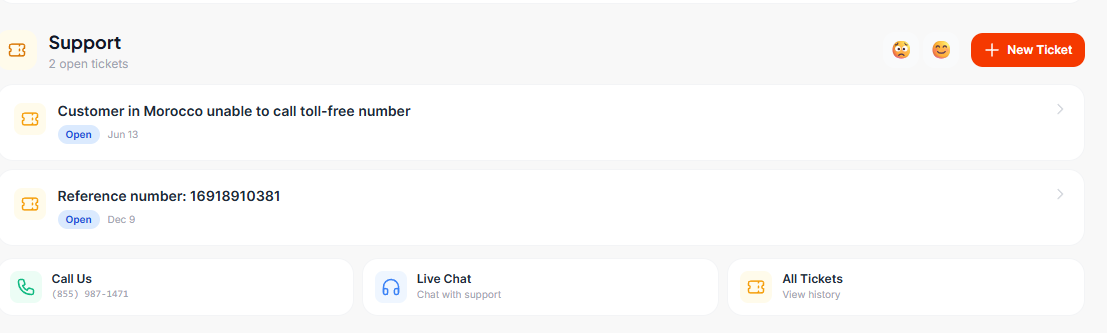
Book a Support Callback
Don’t want to wait on hold? Book a callback from your dashboard. Choose what you need help with, pick a time, and a Voiply agent will call you.
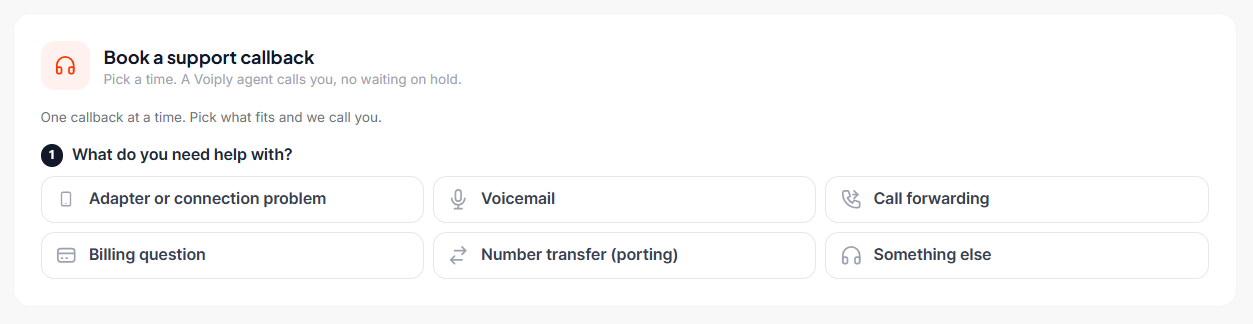
👉 Learn more: How to Book a Support Callback
Refer a Friend
The Refer a Friend banner lets you invite friends and family to Voiply and earn rewards up to $70 per referral. Share your link via email or SMS directly from the portal. 
👉 Learn more: How Voiply's Refer a Friend Program Works
Need Help?
If you're not sure where to go or need assistance with a feature, our support team is happy to help via phone, live chat, or support ticket — all accessible directly from your dashboard.
Think of the Residential Portal Dashboard as your control center. Everything starts here, and every feature is just a click away.
Did this answer your question?
Glad it helped.